How to Use LM Studio, What's Free, and What to Check Before Starting Local AI
Run AI on your own computer with no account and no API key. Running models locally is free; only cloud models are billed per token.
What this star does
Who it's for
· People who don't want to upload company documents or personal notes to an outside server
· People who want to ask AI questions even without internet
· People who need an AI server to connect to a program they built
· Your computer's specs are low and it's hard to run large models → an AI service you use directly on the web is simpler
· Installing anything feels like a burden → a web AI with no installation is more convenient
First 3 steps
Start without signing up
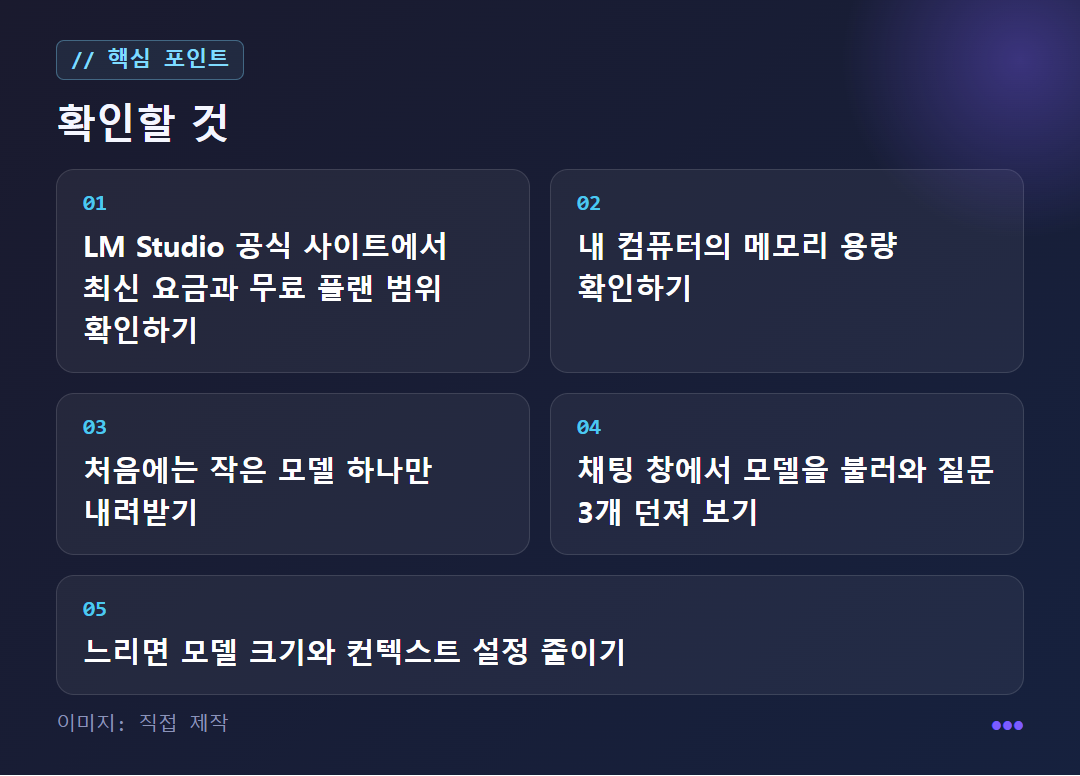
Start with a small model
If it's slow, switch to a smaller model
Frequently asked questions

A closer look
Who is LM Studio right for?
It suits people who want to run AI on their own computer but find command-line windows intimidating. Local AI is AI that runs directly on your computer rather than on an internet server. LM Studio lets you use it through a point-and-click screen.
One user review compared it with Ollama, which serves the same purpose, and wrote that LM Studio is more user-friendly. That is the writer's personal opinion, so take it only as a reference.
There are three situations where it's useful: polishing a document draft you'd rather not upload anywhere, asking questions without internet, and needing an AI server to connect to a program you built. On the other hand, if you don't have a powerful computer or installing feels like a burden, look at the "Other options" section below first. The pricing and feature information in this article summarizes public sources as of 2026-10-30, so it may change later.
What is the order from installation to the first conversation?
It takes three steps. Download and install the app, download one model from the app's model catalog, and load that model in the chat window. According to one how-to article, you need neither an account nor an API key.
Choosing a model is the part that's easy to get wrong. The catalog has many models, but the material I reviewed this time had no guidance on which model will run well on your computer. So it's safest to start by downloading a small model, and switch to a smaller one if it feels slow.
Once your first chat works, turn off your internet connection and ask a few questions. It's the moment when it feels most certain that everything is running locally. If you're not happy with the speed, the first thing to check is reducing the model size and the context (how much of the conversation it remembers at once) setting.
How far does the free plan go?
Running models locally is free; only cloud models are billed per token. A token is a small piece of text that the AI reads and writes. According to the usage guide, the free plan covers running local LLMs (language models that act as the brain of a conversational AI), offline voice dictation, the Bionic agent, and LM Link, which connects up to 5 devices.
I couldn't find the prices and limits of the paid plans in the material I reviewed this time. So I haven't listed any numbers, and I suggest checking the pricing on the official pricing page yourself.
If you plan to connect a cloud model, remember just one thing. In the price table of the same usage guide, input and output rates differ greatly from model to model. The guide doesn't clearly state the base unit for those rates, so I haven't copied the figures here. It's safer to check the rates and units on the official page yourself before you use them.
What can you do when you turn on the local server?
When you turn on the server in the app, an HTTP address opens on your computer. It supports three paths: /v1/chat/completions, /v1/responses, and /v1/messages. Code built with the OpenAI SDK or in the Anthropic format reportedly works just by swapping in the new connection address.
There's a way to use it even if you're not a developer. An app called Chatbox lets you connect to the API of a locally running LLM through a graphical interface, and one review post set up remote use with this combination.
An MCP server (a server following the standard that connects external tools to an AI) linking Claude and LM Studio is also available on PyPI. However, its description is only one line, so I couldn't confirm how useful it really is. Before connecting, check the official documentation first to see whether the supported paths are still the same.
What about Bionic, LM Link, and other options?
Bionic is a separate app that handles coding, research, and document work with open models. It's described as able to run the model directly on your own device or connect to it via LM Link. The usage guide says the product has expanded toward having local models handle document editing, code work, and even computer control. LM Link is a feature for connecting multiple devices, and the free plan allows up to 5. For high-permission tasks like computer control, a wrong judgment by the model can do serious damage, so test it first in an environment with no important files.
If this describes you, look at other options. First, if your computer has low specs. Local AI speed varies greatly depending on memory and context settings. Second, if you want to use AI right away without installing anything. A web-based AI service is simpler.
For reference, Apple stated on its Mac Studio page that it measured the time to first token for a 14B-parameter 4-bit model using LM Studio v0.4.19. This was a test Apple ran on its own devices in July 2026, so it isn't independent verification, and it should be considered separately from the performance of ordinary PCs.
This article is not a hands-on review. It is a summary of public materials checked on 2026-10-30. For some materials, only search summaries were available instead of the original text.
✦ See this star on the 3D map