How to Make an AI ID Photo: Resume vs. Official Submission
For a resume or social media, one selfie is enough. For official documents like a passport, go to a photo studio.
What this star does
Who it suits
· People whose resume deadline is today and have no time to visit a photo studio
· People who want to give their social media, blog, or company intranet profile a neater look
· People who want to quickly make a business card or employee ID photo within company rules
· You need a photo for a passport, resident registration card, or driver's license → have it taken at a photo studio
· You want to change your facial features or retouch yourself to look like someone else → it may be rejected because your identity is hard to verify
· You need to upload someone else's face photo → get that person's consent first
First 3 steps
Resume form and company rules first
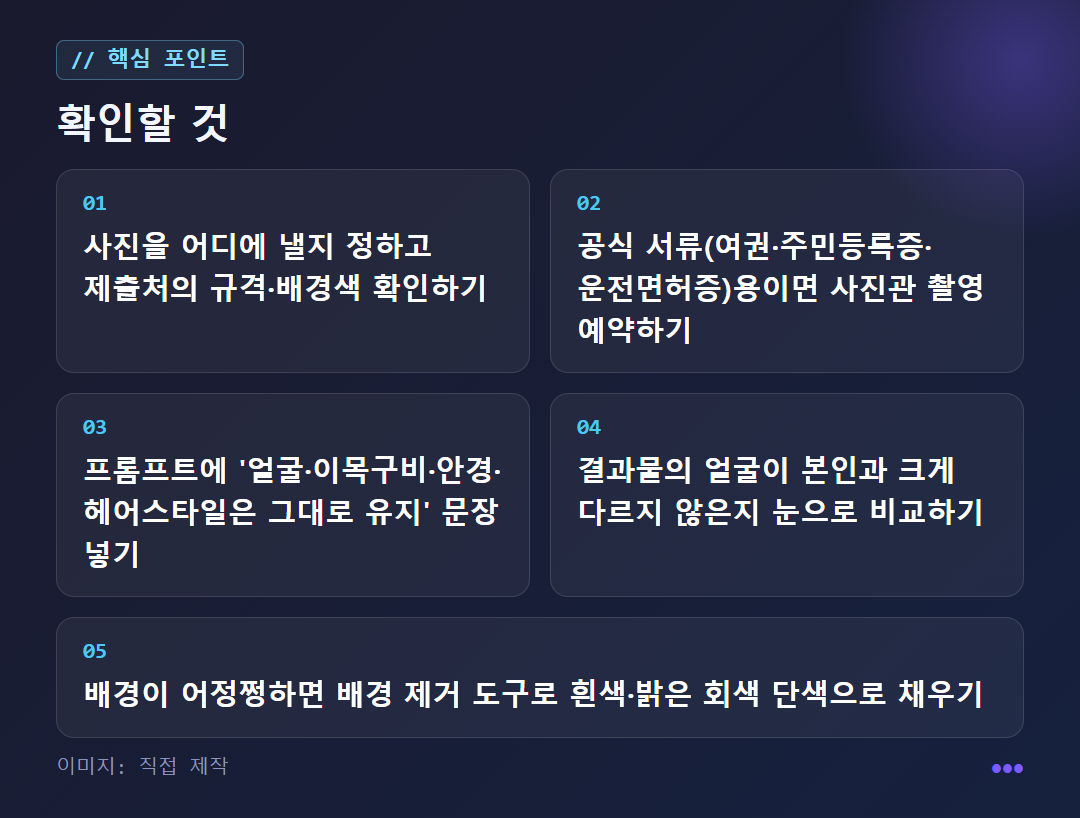
Include "Keep my facial features and overall impression unchanged"
White or light gray
3×4cm, 3.5×4.5cm, etc.
Frequently asked questions
A bit more detail
Can a single selfie really become an ID photo?
For unofficial uses, yes. For things like résumé profile photos, social media, and company intranet pictures, many people upload a selfie to Gemini or ChatGPT and turn it into an ID-photo style image.
Whether it costs money depends on the tool. ChatGPT and several other tools offer a free tier, but free tiers may limit the number of generations and the image quality. Check each tool's official guide for the exact limits.
One thing is easy to mix up. An AI person created from text alone is not your face. If you need your own face, upload a photo you took yourself and have the AI tidy up only the framing, clothing, and background. This process is also covered in the post How to make a profile and ID photo with AI.
What should you write in the prompt?
The first sentence is "don't change the face." An AI ID photo is not for retouching your face to look prettier. It is closer to keeping your original face as it is and making the framing, clothing, and background neat.
For a résumé photo, try writing something like this. “Keep the facial features and overall impression of the person in this photo unchanged. Make it an ID-photo style facing straight ahead, with the shoulders symmetrical and centered. Put them in a white shirt and a dark jacket, with a plain light gray background and a natural, calm expression.”
If you need a white background, like for an employee ID, just change the background sentence to “pure white solid color, with minimal shadows.” If you wear glasses, you need to write separately that the glasses and hairstyle should stay the same. An example of specifying the background color with a color code such as #FFFFFF appears in the AI ID photo prompt post.
To learn how prompts are put together, the page 25 pet ID photo prompts is also a useful reference. It sets up a front-facing upper-body composition while changing the background color and lighting, so the basic structure is similar when you write prompts for photos of people.
What if the background color comes out off?
Work on the face and the background separately. No matter how much you refine the prompt, white can come out slightly bluish or gray can show up blotchy. It is hard to match the white or gray that a résumé form requires with the prompt alone, at 100%.
The order is simple. First, save a result where the face and clothing came out well. Then use a background removal tool to erase only the background, and fill it again with white or light gray. Separating face generation from background cleanup makes the result much more stable.
There is one thing to watch out for. Background tools do not recreate the face. If the face has changed awkwardly, you need to go back to the AI generation step before touching the background. One review also noted that the face was slightly distorted in a result made with ChatGPT. The clothing and framing were reportedly clean.
Can you use it for official documents, and when should you not use it?
You should not use it for official documents. For passports, resident registration cards, and driver's licenses, often only actually taken photos are accepted, and there are detailed rules covering background color, size, expression, and even glare on glasses. An image in which AI has synthesized or generated the face may be rejected, or in serious cases it can become a forgery or alteration issue.
Here is how it breaks down by use. Social media and blog profiles allow a lot of freedom and work well with AI. Résumés, business cards, and employee IDs need a neat background and clothing, so check your company's rules before using it. For official documents, using AI is effectively not appropriate.
There are other times when you should not use it. If the result looks different from you, it can actually feel awkward in an interview. When uploading a photo of someone else's face, that person's consent comes first. Even with your own photo, be aware that your face data is sent to the service. You can find how it is handled in each service's terms of use.
If you have time, you can also take the photo yourself without AI. Stand at least 30cm away from the wall, turn off the flash, and raise just the corners of your mouth slightly to reduce shadows and red-eye. See the DIY ID photo guide for details. Also keep in mind that a smartphone selfie can be rejected if it has wide-angle distortion or shadows.
How closely should you match the specs and retouching rules?
Check the size first. A standard ID photo (half-portrait size) is 3×4cm, while a passport photo is 3.5×4.5cm. Some sources list 5×5cm for visas, so first look at the size the place you are submitting to requires, and match it. The online ID photo maker provides size settings for each standard, and it states that processing happens only inside the browser, so images are not sent to a server.
For passport photos, the rule is introduced as 32–36mm from the top of the head to the chin, with a plain white background. However, the face-ratio standard is worded differently from source to source, so the final standard must follow the issuing authority's guidance (the Ministry of Foreign Affairs passport information site).
For retouching, brightening the skin tone by a shade or two, removing small blemishes, and cleaning up the background is generally fine. Changing the face shape, enlarging the eyes, or altering the jawline can make identity verification difficult and may require a retake. For the allowed range, see the ID photo editing guide.
✦ See this star on the 3D map